 13Jun

Imagine a student answering a multiple-answer question in an online exam. The question has three correct options, but the student selects only two of them.
Should the student get zero marks?
That depends on the marking rules you follow. With partial marking, you can award marks for correct selections instead of treating every incomplete answer the same way.
Acadlix LMS offers two partial marking methods: Strict and Flexible. Both are useful, but they handle incorrect selections differently.
In this guide, we’ll look at how each method works, when to use it, and how to enable it in Acadlix.
What Is Partial Marking?
Partial marking is a scoring method used for questions with multiple correct answers. It allows students to earn marks for the correct options they select, even when they don’t select every correct option.
For example, suppose a question carries 4 marks and has four options. Three options are correct, and one is incorrect.
A student selects two correct options but misses the third. With partial marking, the student can earn marks for those selections. The final score depends on the marking method selected for the quiz.
This is particularly useful when creating competitive exam tests, practice quizzes, and other assessments with multiple-answer questions.
Strict vs. Flexible Marking in Acadlix
Acadlix lets you choose between Strict and Flexible marking. Let’s use the same question to understand the difference.
Sample question:
Q: Which of the following are the continents?
- Asia — Correct
- Australia — Correct
- America — Incorrect for this question
- Africa — Correct
The question carries 4 marks. There are three correct options and one incorrect option.
1. Strict marking
In Strict Marking, students can earn partial marks by selecting only correct options. However, selecting even one incorrect option makes the entire answer incorrect.
Here’s how the marks are awarded:
| Answer selected | Marks |
| One correct option | 1 |
| Two correct options | 2 |
| All three correct options | 4 |
| One correct and one incorrect | 0 |
| Two correct and one incorrect | 0 |
| All three correct and one incorrect | 0 |
If negative marking is enabled, the applicable negative score is awarded when the answer is considered incorrect.
For example, if negative marks are set to 1, then the user will get -1 as the total mark if they select any wrong option.
| Answer selected | Marks without negative marking | Marks with negative marking |
| One correct option | 1 | 1 |
| Two correct options | 2 | 2 |
| All three correct options | 4 | 4 |
| One correct and one incorrect | 1 | -1 |
| Two correct and one incorrect | 2 | -1 |
| All three correct and one incorrect | 3 | -1 |
When should you use Strict Marking?
Choose Strict Marking when students must select the correct options without choosing any incorrect ones. It can be useful for exams where an incorrect selection invalidates the answer.
2. Flexible marking
Flexible Marking takes a different approach. Students earn marks for the correct options they select. An incorrect selection doesn’t cancel the marks earned from correct selections.
Using the same question, the scores would be:
| Answer selected | Marks before negative marking |
| One correct option | 1 |
| Two correct options | 2 |
| All three correct options | 4 |
| One correct and one incorrect | 1 |
| Two correct and one incorrect | 2 |
| All three correct and one incorrect | 3 |
For example, if a student selects Asia, Australia, and America, the student earns 2 marks because Asia and Australia are correct.
If negative marking is enabled, the applicable penalty is deducted from the marks secured.
Final score = Marks secured − Negative marks
For example, if negative marks are set to 1, then the user will get
| Answer selected | Marks without negative marking | Marks with negative marking |
| One correct option | 1 | 1 |
| Two correct options | 2 | 2 |
| All three correct options | 4 | 4 |
| One correct and one incorrect | 1 | 0 |
| Two correct and one incorrect | 2 | 1 |
| All three correct and one incorrect | 3 | 2 |
When should you use Flexible Marking?
Choose Flexible Marking when you want students to retain marks for correct selections, even if they also select an incorrect option. This can be useful for practice tests and assessments where you want to reward partial knowledge.
Why Use Partial Marking in Your Exams?
Partial marking gives you more control over how students are evaluated. Here are a few situations where it can help.
Competitive exam preparation: If you run coaching classes for exams such as IIT JEE, you can configure multiple-answer questions according to the marking rules you want to follow. Always check the relevant exam’s official scheme before choosing a method.
Practice tests: Students use practice tests to find gaps in their knowledge. Partial marking can help distinguish between a completely incorrect response and one that contains some correct selections.
School and college assessments: Some questions have more than one correct answer. Partial marking lets you decide how students should be scored on those questions.
Training and certification: If your assessment includes questions with multiple correct answers, you can choose a marking method that suits the purpose of the test.
How to Set Partial Marking in Acadlix LMS
You can enable partial marking from the quiz editor. Follow these steps.
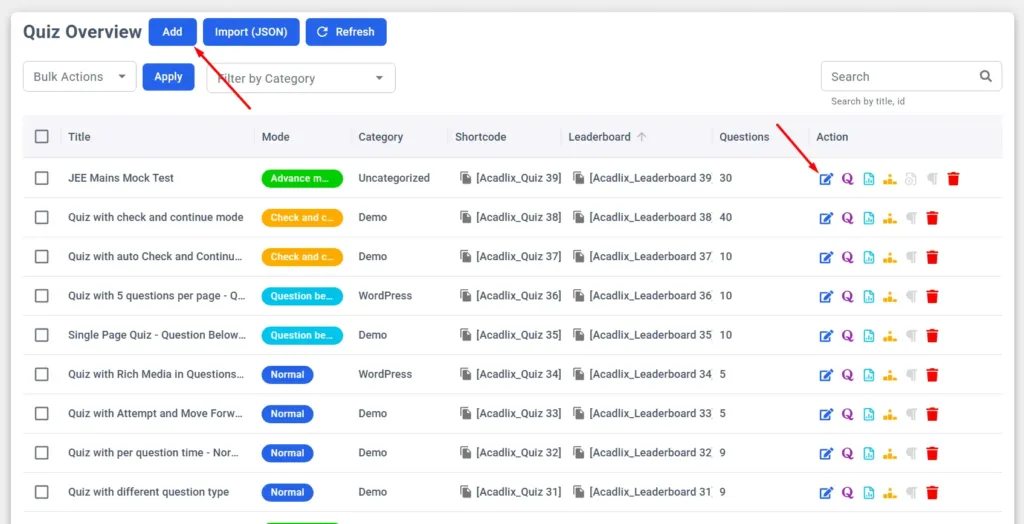
Step 1: Open Add/Edit Quiz
Log in to your WordPress dashboard and navigate to Acadlix.
Add a new quiz or edit an existing quiz.
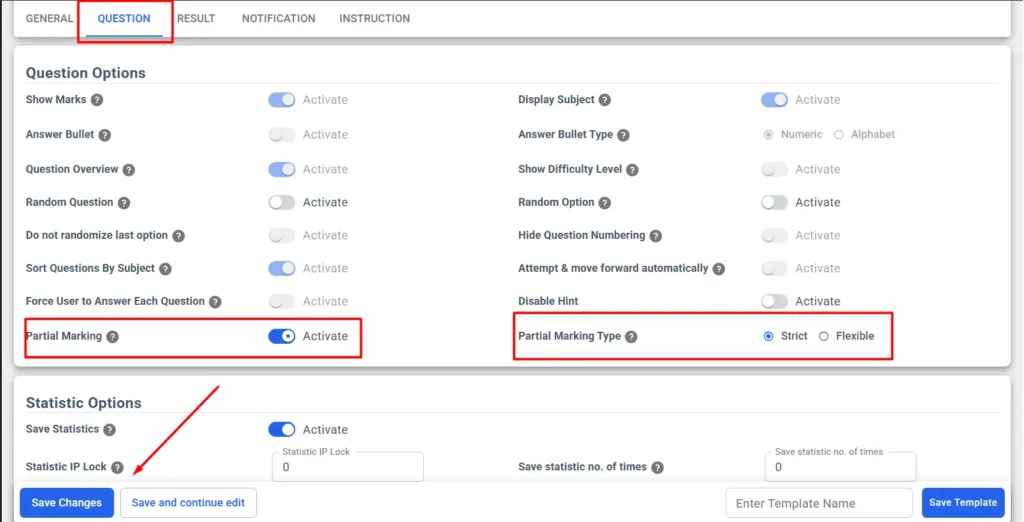
Step 2: Find Question Options
In the quiz editor, navigate to the Question Options section.
Look for the Partial Marking setting.
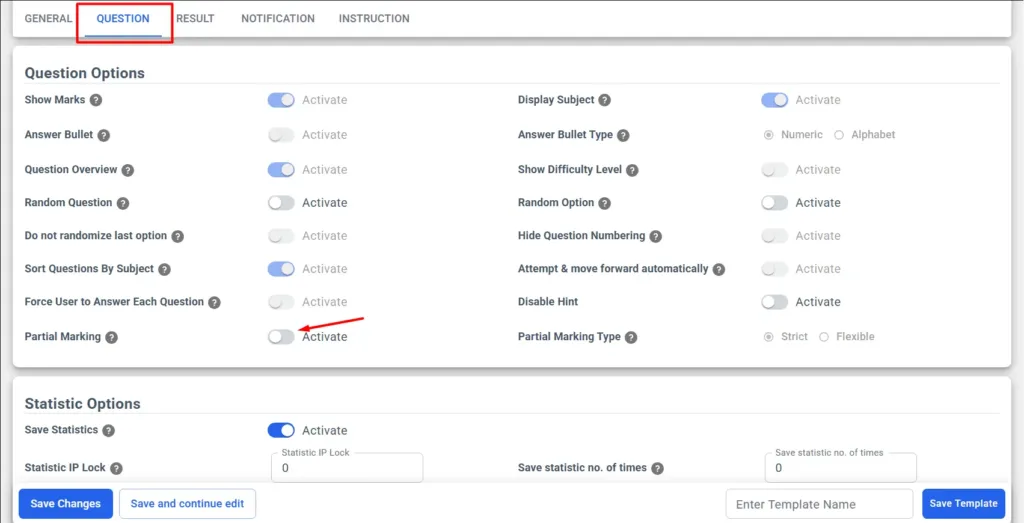
Acadlix Quiz Questions Options
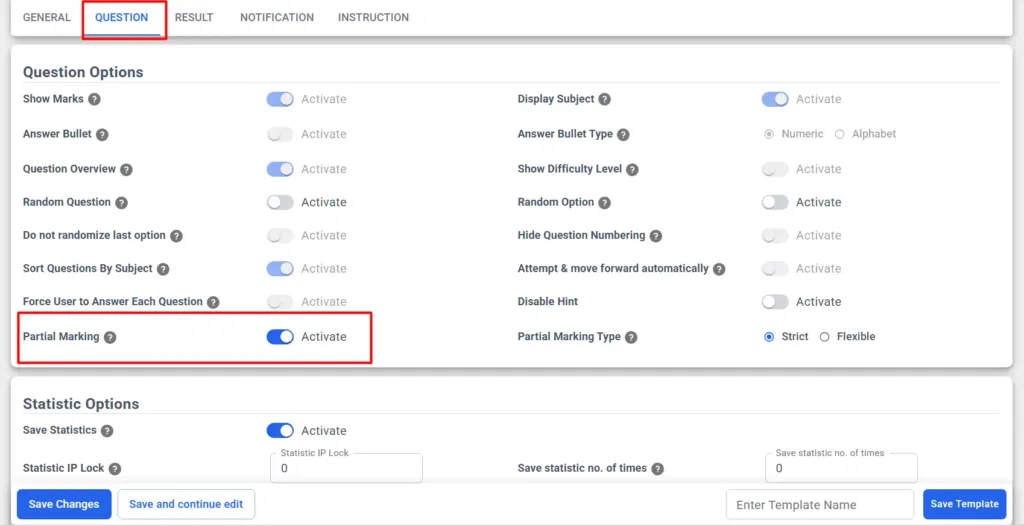
Step 3: Enable Partial Marking
Turn on the Partial Marking option.
You can now select the marking method you want to use.
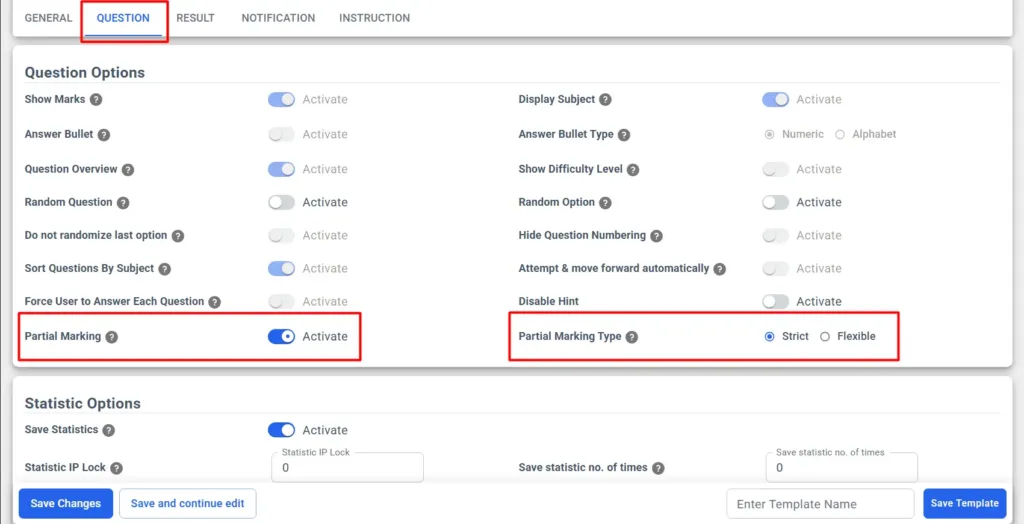
Step 4: Select the marking type
Choose one of the available options:
- Strict: Any incorrect selection makes the entire answer incorrect.
- Flexible: Marks for correct selections are retained even when an incorrect option is selected.
Choose the method that matches your exam’s marking rules.
Step 5: Save the quiz
Save the quiz to apply your settings.
How to Configure negative marking (Optional)
If your exam uses negative marking, configure the marking accordingly.
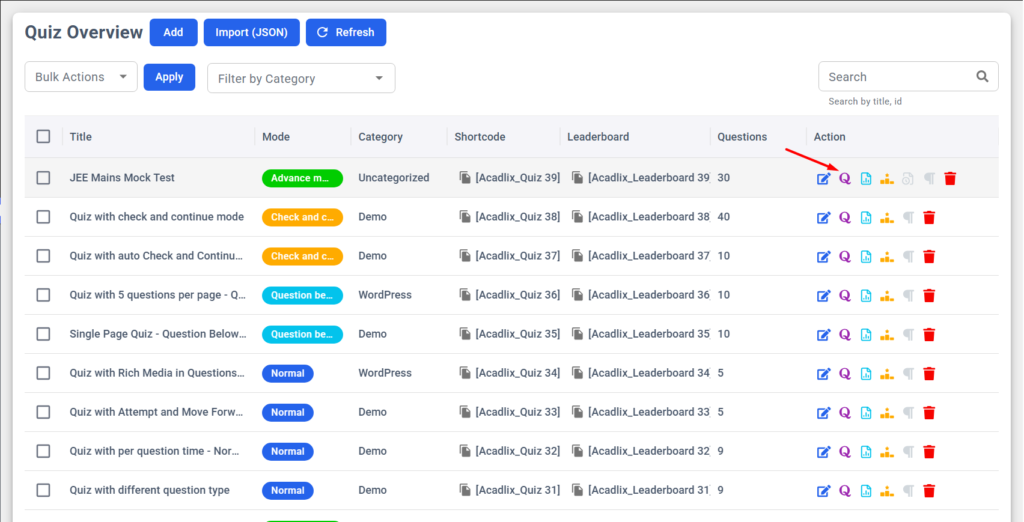
Step 1: Navigate to the Quiz listing page
Go to the quiz listing page and click on the Questions option for the quiz for which you want to set negative marks.
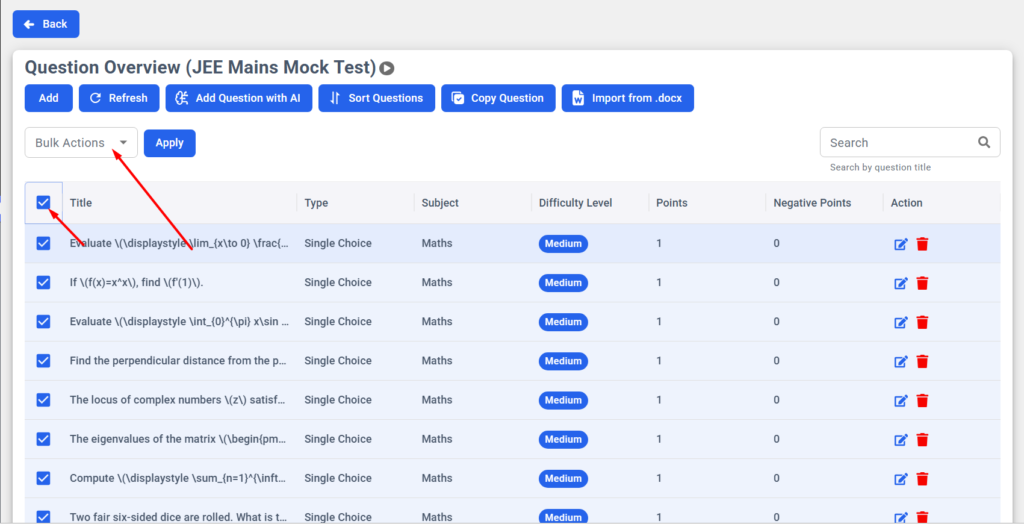
Step 2: Select questions and apply bulk actions.
Select all the questions by clicking on the checkbox to the left of the Title text.
And click on the Bulk Actions drop-down.
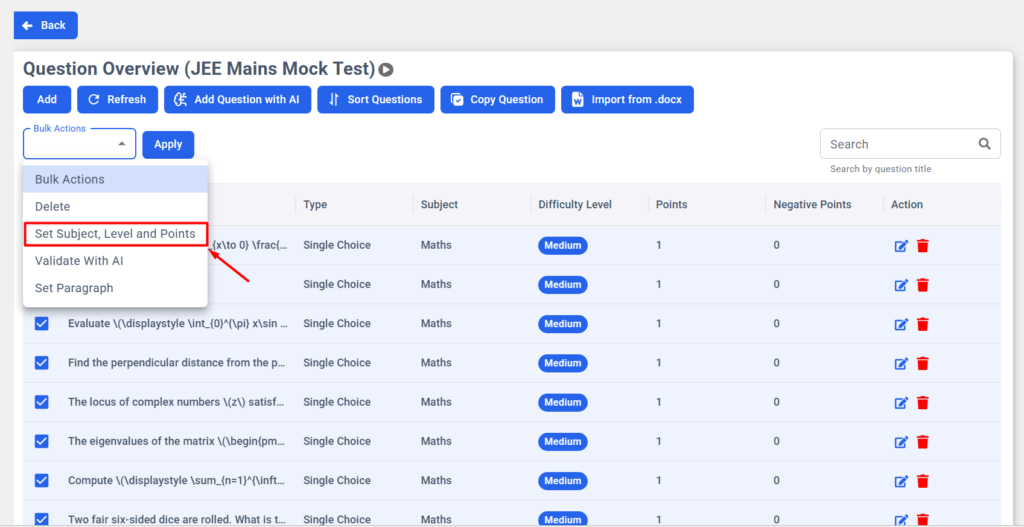
Step 3: Set subject, level, and points option
Select the option “Set subject, level and points option”. And click Apply.
A new modal will open, where you can set the question’s subject, difficulty level, correct marks, and negative marks.
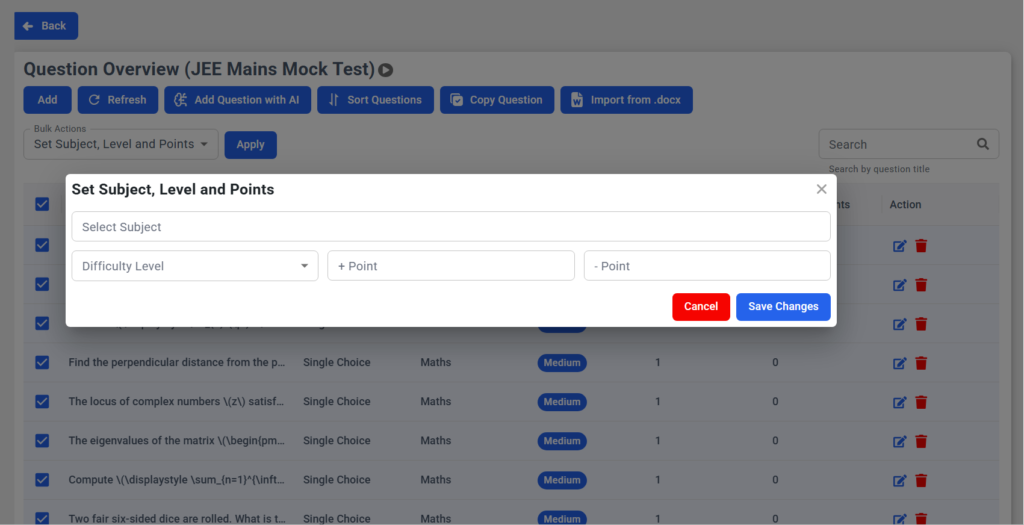
Note: All fields are optional. If you don’t set any value for a field, it will reflect the data as previously added. That mean you can leave the fields as it is that you don’t want change.
Step 4: Set marks
Set the marks/points for the correct answer and incorrect answer (negative marks)
Just set the numerical value without any + or – sign.
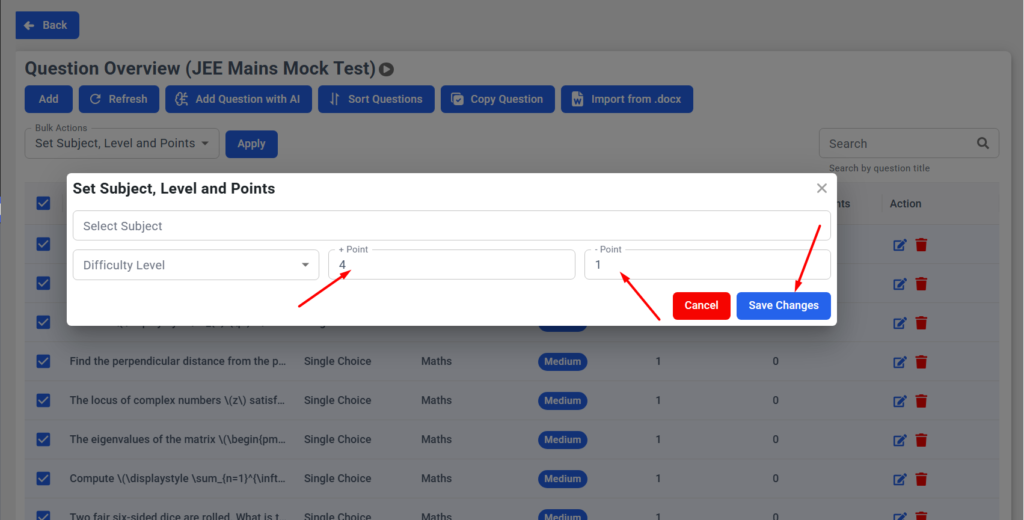
Click the “Save changes” button to apply the new marks.
Before making the quiz available to students, take a sample test. Try selecting only correct options, a mixture of correct and incorrect options, and all the correct options. Check the results to make sure they match your intended scoring rules.
That’s all you need to do to configure partial marking in Acadlix LMS.
Things to Check Before Publishing Your Quiz
A few simple checks can help you avoid scoring problems.
- Review the answer key. Make sure every correct and incorrect option is marked properly.
- Check the question marks. Confirm that the total marks and partial scores match your intended exam pattern.
- Test both types of answers. Try combinations containing only correct options and combinations containing incorrect options.
- Review negative marking. Confirm that the final score follows the rules configured for your quiz.
- Tell students about the rules. Explain how incorrect selections affect their scores before the exam begins.
These checks are especially important when you use the quiz for a live examination.
Frequently Asked Questions
Can I enable partial marking in Acadlix LMS?
Yes. Open your quiz, navigate to Question Options, enable Partial Marking, and choose Strict or Flexible.
What is the main difference between Strict and Flexible marking?
Strict Marking makes the entire answer incorrect if a student selects any incorrect option. Flexible Marking retains the marks earned from correct selections.
Can I use negative marking with partial marking?
Yes. You can configure negative marking for your quiz. The final score depends on the selected marking method and the negative marking settings.
Which partial marking method should I choose?
Choose Strict if any incorrect selection should invalidate the answer. Choose Flexible if you want students to keep the marks earned from correct selections.
Should I test the quiz before publishing it?
Yes. Try different answer combinations and review the results before allowing students to take the quiz. This helps confirm that your scoring rules work as expected.
Set Up Your Next Quiz with Acadlix
Partial marking is useful when a question has multiple correct answers, and you need more control over scoring.
With Acadlix LMS, you can choose Strict Marking to penalize incorrect selections at the question level or Flexible Marking to retain marks earned from correct selections.
Open your quiz, enable Partial Marking, select your preferred method, configure negative marking if required, and save your changes.
If you’re building an online exam portal or managing courses and assessments in WordPress, explore Acadlix LMS to learn more about its quiz and course management features.