With this addon, you can export the various data in PDF / Excel files.
How to Enable the Data Exporter Add-on in Acadlix?
Navigate to the Addon manager by clicking on the “Addons” option from the left menu.
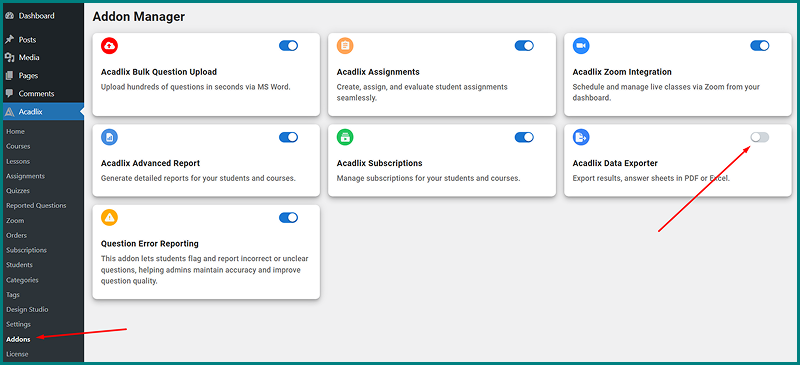
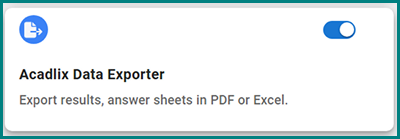
Enable the toggle button in front of the “Data Exporter” addon.
How to enable Result PDF for Students for a quiz?
After enabling the addon, you will see a new toggle button in the quiz add/edit page under Advanced Options.
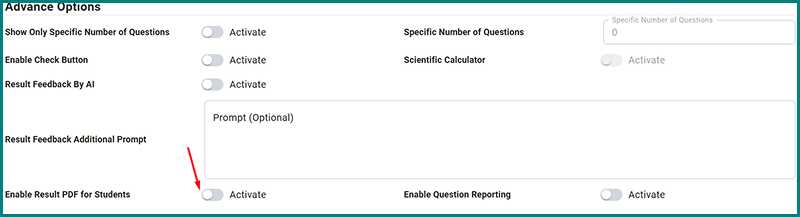
Enable the toggle button.

How will a student download the Result PDF?
Student can download the result PDFs from their Dashboard.
A student has to log in to their student dashboard –> My Result.
Choose the quiz from the action button to view the answer sheet.
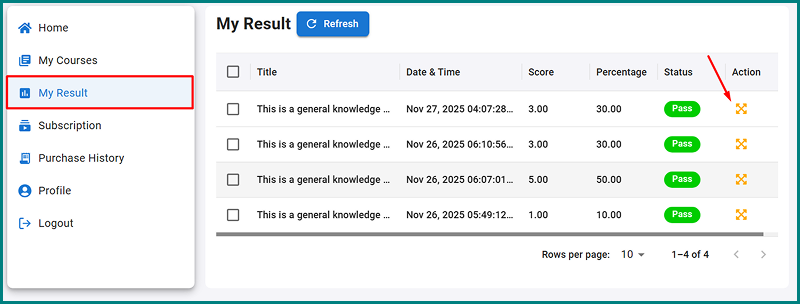
Click on the “Export to PDF” button.
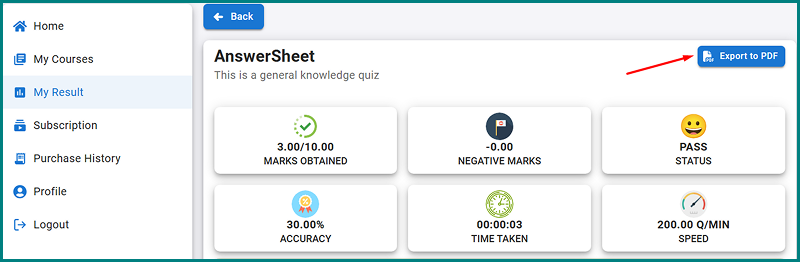
The PDF file for this answer sheet will be downloaded in a few moments.
LaTeX equations will be exported as an unrendered version, if there are any.
How will an admin download the Result PDF?
Navigate to the Quizzes from the left-hand Acadlix menu.
Select the Quiz for which you want to download the answer sheet and click on the “Result” icon.
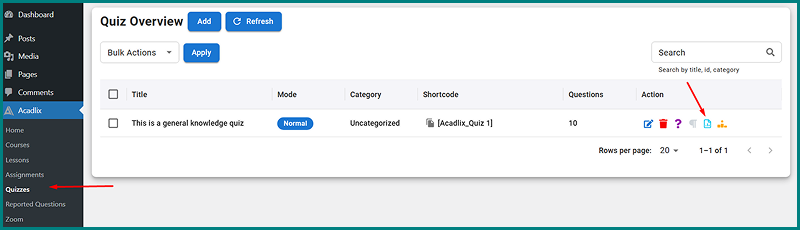
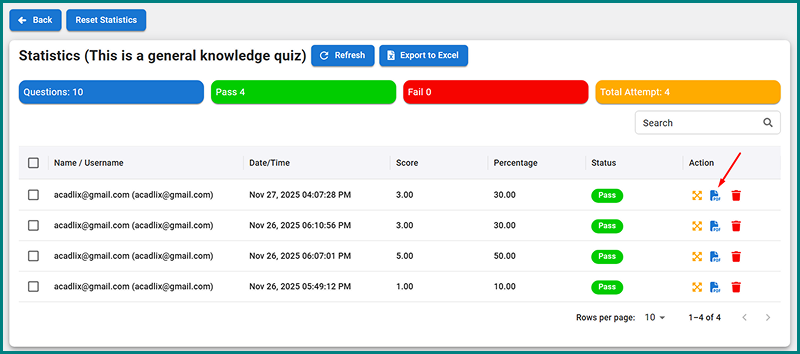
This list of all attempts made by students will be visible now.
Click on the “PDF” icon for the attempt that you want to download the answersheet.
How to download the summary of all attempts in Excel?
We have added a feature so that the admin can download the summary of all attempts in an Excel file for a quiz. This will include data of all attempts, including the Student’s name, Student Email, Created At, Points, Result(%), Quiz Time, Accuracy, and Status.
Navigate to the Quizzes from the left-hand Acadlix menu.
Select the Quiz for which you want to download the answer sheet and click on the “Result” icon.
Click on the “Export to Excel” button.
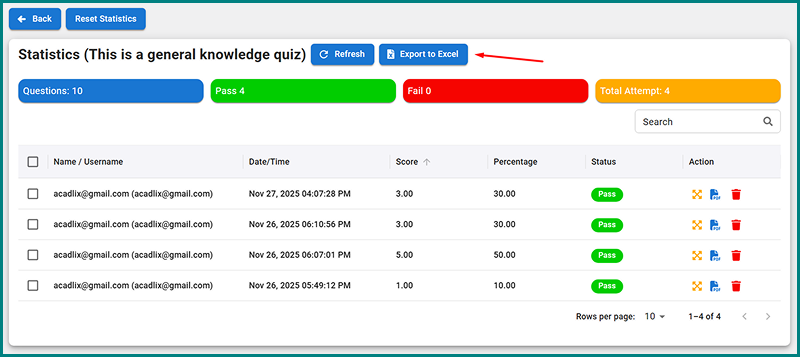
The file will start downloading in a few moments.
How to Download Student Overview in Excel?
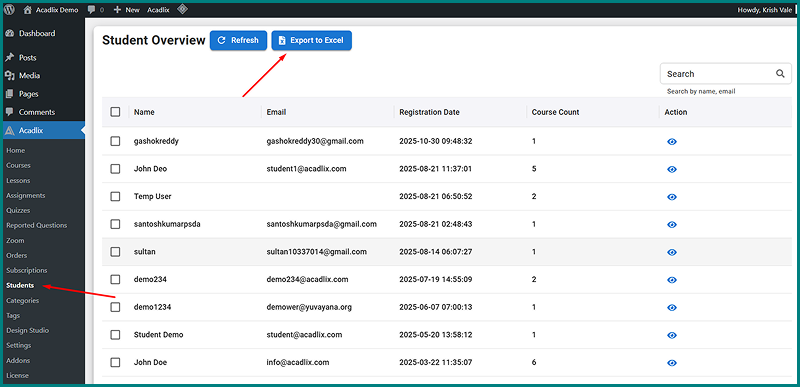
We have added a feature that allows the admin to download an overview of enrolled students. This will include the details of Student Name, Student Email, Registered On, and Course Count.
From the left-hand Acadlix menu, navigate to the Students.
Click on the “Export to Excel” button.