
Advertising Banner Settings allow you to display promotional banners on the student dashboard. You can use these banners to promote courses, announce special offers, highlight new learning programs, or direct students to important pages on your website.
This feature provides an excellent opportunity to engage students, increase course visibility, and promote relevant offers directly within the learning environment.

1. Why Use Advertising Banners?
Advertising banners help you communicate important information and promote your offerings to students while they are using the dashboard.
Here are some common ways to use them:
- Promote Courses: Highlight newly launched courses, test series, or popular learning programs.
- Announce Special Offers: Inform students about discounts, coupon codes, seasonal sales, and limited-time offers.
- Promote Upcoming Events: Share information about upcoming live classes, webinars, workshops, and seminars.
- Increase Course Enrollments: Direct students to course pages or enrollment pages using clickable promotional banners.
- Share Important Announcements: Bring attention to new features, learning resources, or important updates.
2. Managing Advertising Banners
The Advertising Banner Settings page allows you to add, enable, disable, edit, delete, and rearrange your promotional banners.
Add Advertising Banner
Click the Add Advertising Banner button to create a new promotional banner.
A pop-up will appear where you can configure the following details:
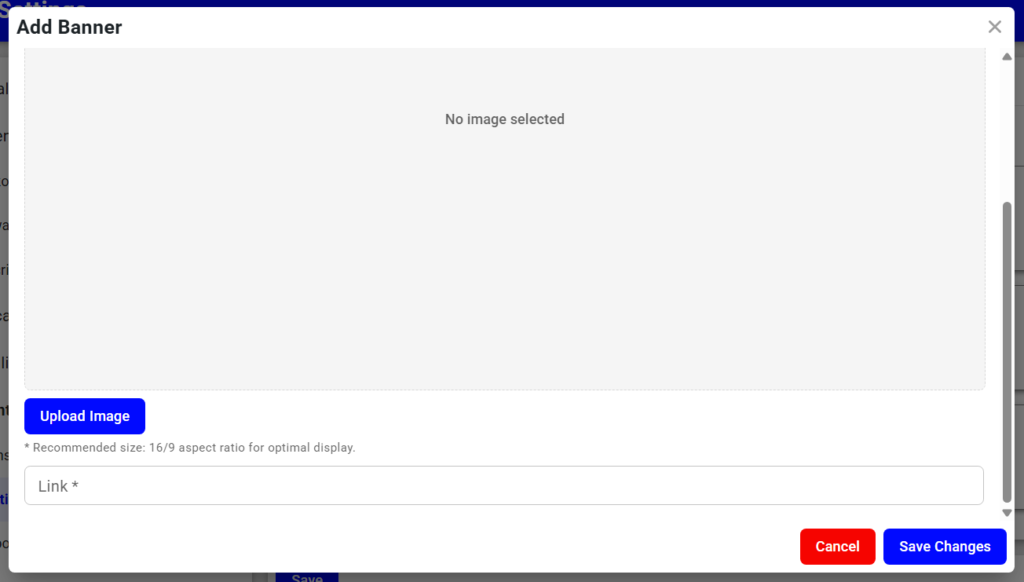
Upload Image
Upload the banner image you want to display on the student dashboard.
Recommended guidelines:
- Aspect Ratio: 16:9
- Use high-quality images with clear and readable text.
- Keep the promotional message short and attractive.
- Ensure the banner looks good on desktop and mobile devices.
We recommend using optimized images to ensure faster loading and a smooth dashboard experience.
Link
Enter the destination URL where students should be redirected when they interact with the banner.
For example, you can link the banner to:
- A course details page.
- A course bundle page.
- A special discount or offer page.
- A registration or enrollment page.
- An external website or landing page.
Note: The Link field is mandatory. Make sure to provide a valid destination URL before saving the banner.
Click Save Changes to add the banner.
3. Enable or Disable a Banner
Each banner has an activation toggle.
- Enable: Displays the banner on the student dashboard.
- Disable: Temporarily hides the banner without deleting it.

You can enable or disable banners whenever required.
This is particularly useful when a promotional campaign ends, but you want to keep the banner available for future use.
4. Reorder Advertising Banners
You can change the display order of banners using the drag-and-drop handle available beside each banner.
Simply drag a banner up or down to arrange the banners in your preferred order.
This helps you prioritize important announcements, new courses, and promotional campaigns.

Tip: Place your most important or currently active promotional banner at the top of the list.
5. Edit or Delete a Banner
Each banner provides two management options:
- Edit: Click the edit icon to update the banner image or destination URL.
- Delete: Click the delete icon to permanently remove a banner you no longer need.

Use the edit option when you want to update an existing promotion without creating a new banner.
6. Save Settings
After adding, editing, enabling, disabling, or rearranging banners, click the Save button to save your changes.
Your configured advertising banners will then be available for display on the student dashboard, provided the Advertising Banner section is enabled under:
Student Dashboard → Options → Dashboard Page Options → Advertising Banner
7. Best Practices for Advertising Banners
For better engagement and visibility, consider the following recommendations:
- Use relevant promotions: Display offers and courses that are relevant to your students.
- Keep banners updated: Remove or disable expired offers and outdated announcements.
- Use clear call-to-action messages: Include phrases such as “Enroll Now”, “Explore Courses”, or “Get 20% Off”.
- Prioritize important banners: Place your most relevant promotion at the top.
- Avoid excessive banners: Display only a few meaningful promotions to keep the dashboard clean and user-friendly.
- Use optimized images: Compress banner images without compromising visual quality to improve loading performance.
Recommendation: Use advertising banners strategically to promote courses, test series, special offers, and upcoming events. When used effectively, they can help you increase awareness and drive more traffic to your course and enrollment pages.