
These settings allow you to customize how single course and course bundle pages are displayed and presented on your website. You can control course listing layouts, configure course filters, manage course reviews, and choose which information is displayed on individual course pages.
These settings help you create a course browsing experience that matches your website’s design and your students’ requirements.
Navigate to:
Acadlix → Settings → Course
Course Options
Course Options allow you to configure the course listing page, including the number of courses displayed, layout, filtering, and review settings.

No. of Courses per Page
Specify the number of courses you want to display on a single page.
For example, if you enter9, the course listing page will display up to 9 courses per page.
When more courses are available, students can navigate through additional pages.
Recommendation: Choose a number that provides a good balance between content visibility and page loading performance.
Columns per Row
Specify how many course columns should appear in each row on the course listing page.
For example:
- 2 Columns: Displays two courses per row.
- 3 Columns: Displays three courses per row.
- 4 Columns: Displays four courses per row.
Choose a layout that works well with your website design and available screen space.
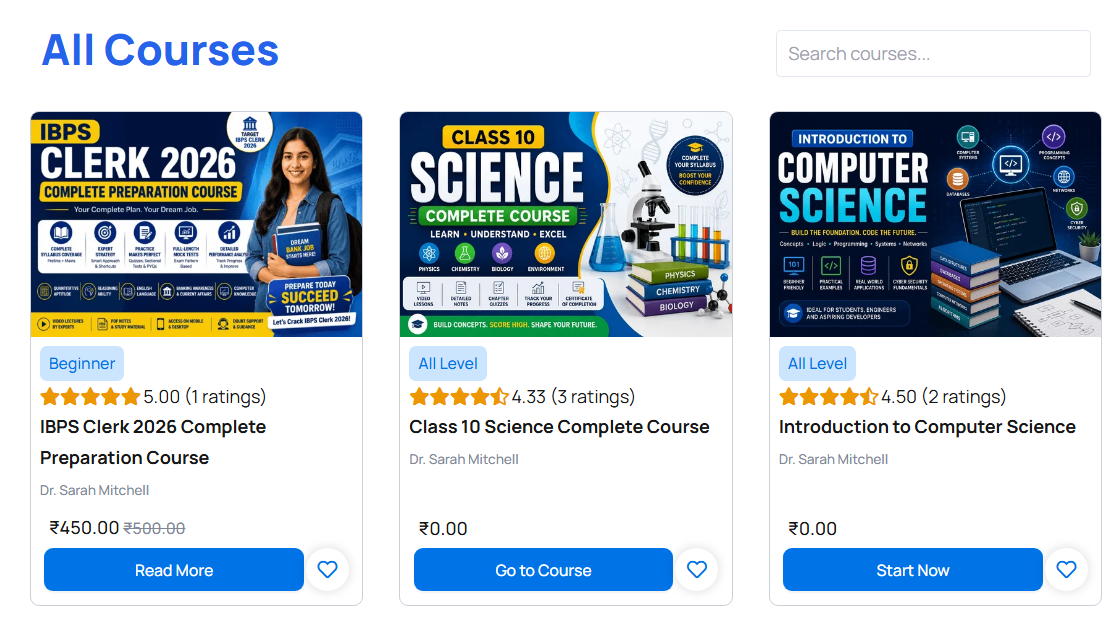
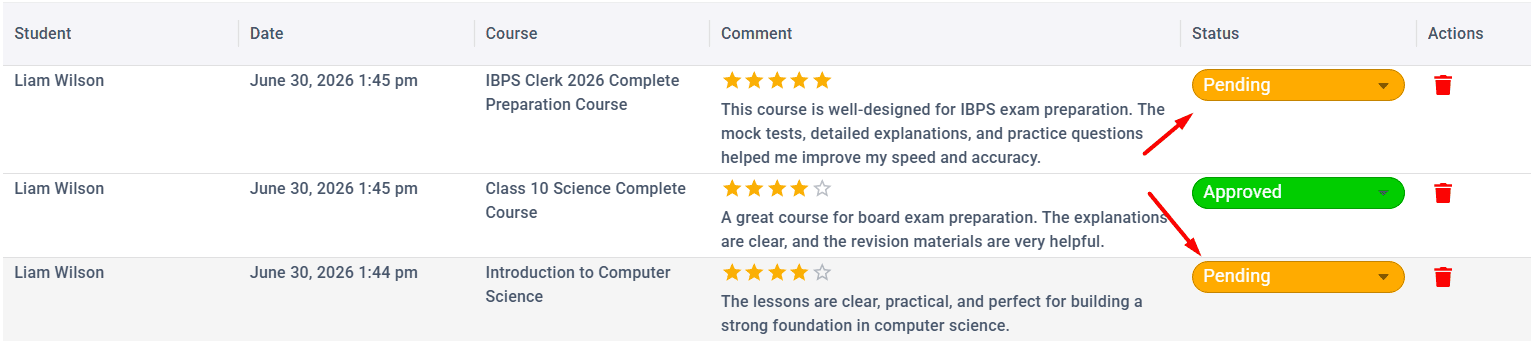
Require Admin Approval for Reviews
Enable this option if you want administrators to review and approve student reviews before they are published.
When enabled, submitted reviews require administrative approval before becoming publicly visible.
This helps you moderate reviews, maintain content quality, and prevent inappropriate or irrelevant submissions.
Disable this option if you want reviews to be published without manual administrative approval.
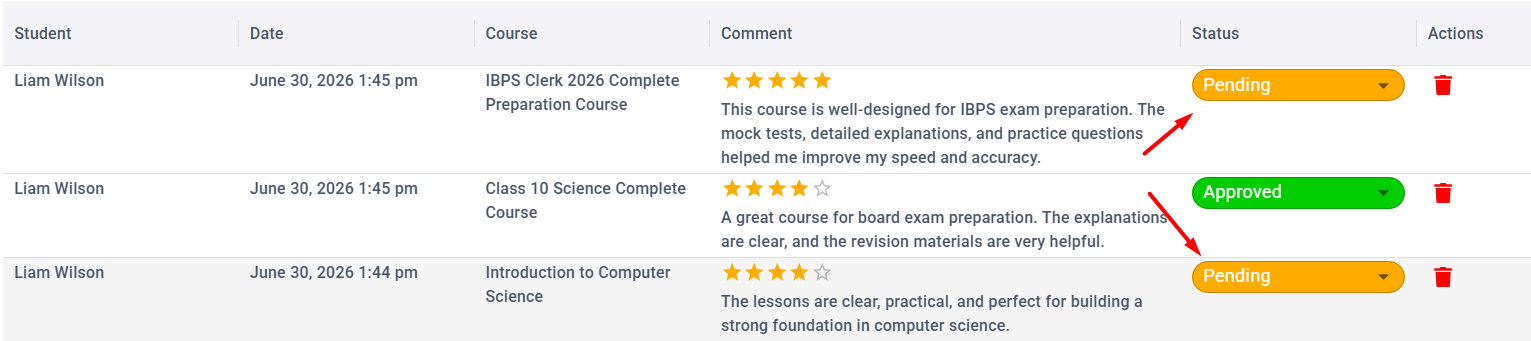
Review Pagination Count
Specify the number of reviews displayed on a single page.
For example, entering 10 will display up to 10 reviews per page, with pagination available for additional reviews.
This helps organize course reviews and prevents individual course pages from becoming excessively long.
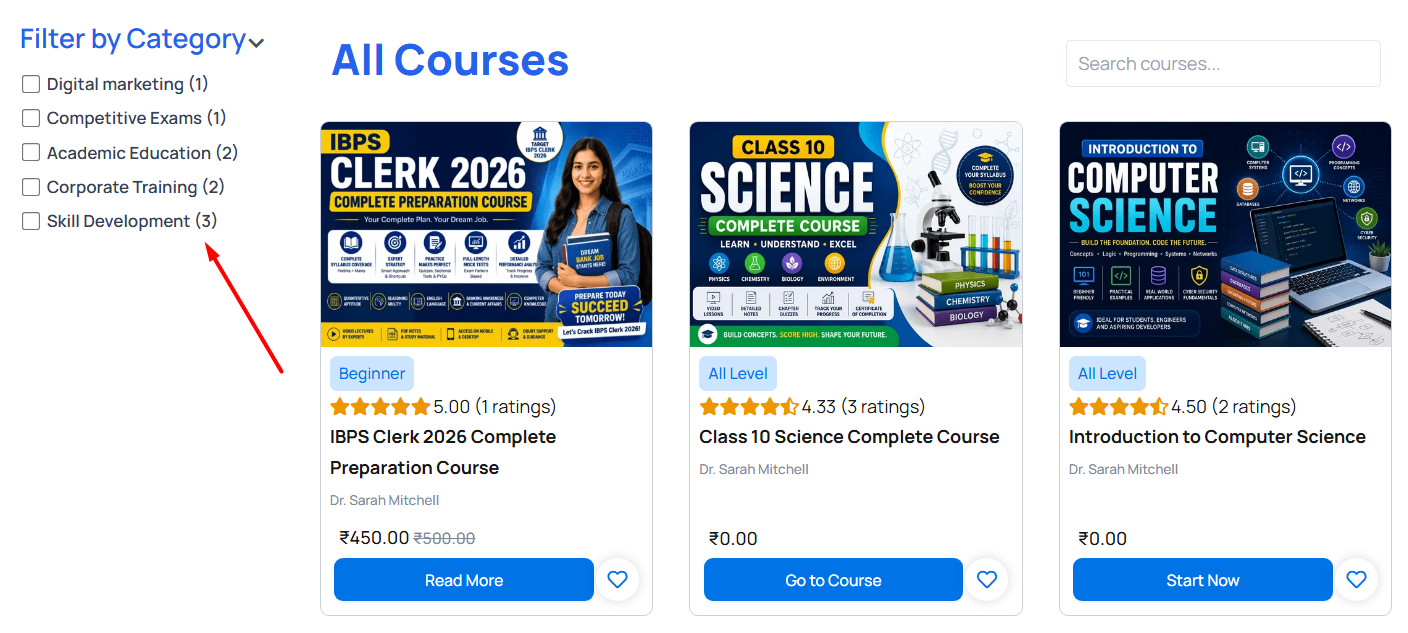
Enable Course Filters
Enable this option to display course filtering options on the course listing page.
Course filters help students find relevant courses more easily based on the available filtering criteria.
This is particularly useful when your website offers a large number of courses across different categories, subjects, or difficulty levels.
Recommendation: Keep this option enabled if you offer multiple courses and want to make course discovery easier for students.
Course Page Options
Course Page Options allow you to control which information and sections are displayed on individual course pages.
You can enable or disable individual elements according to your website’s requirements.
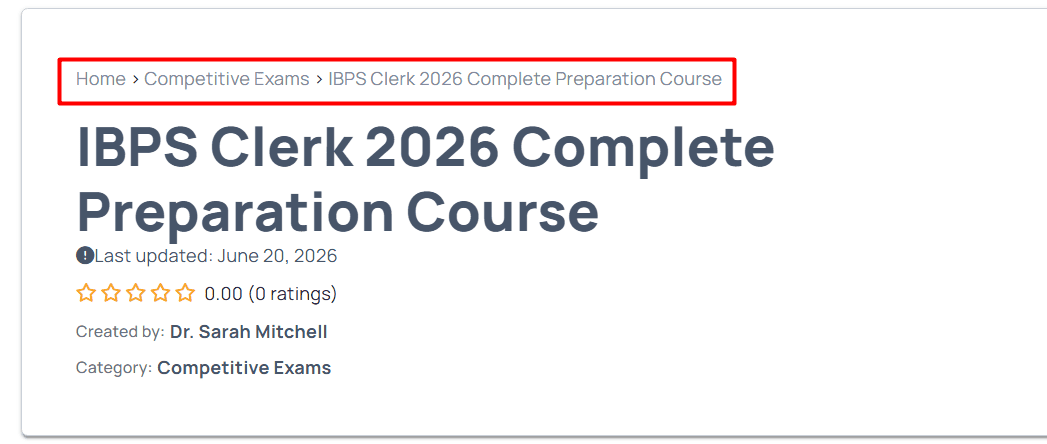
Enable Breadcrumb
Enable this option to display breadcrumb navigation on course pages.
Breadcrumbs help students understand their current location within your website and navigate back to previous pages.
This also improves website navigation and can help search engines understand your website structure.
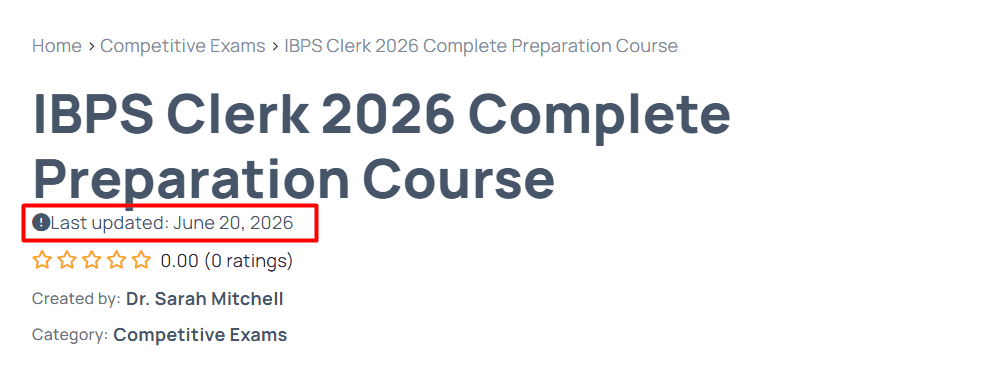
Enable Updated Date
Enable this option to display the course’s updated date.
This helps students understand when the course content was last updated.
It is particularly useful for courses where content changes frequently.
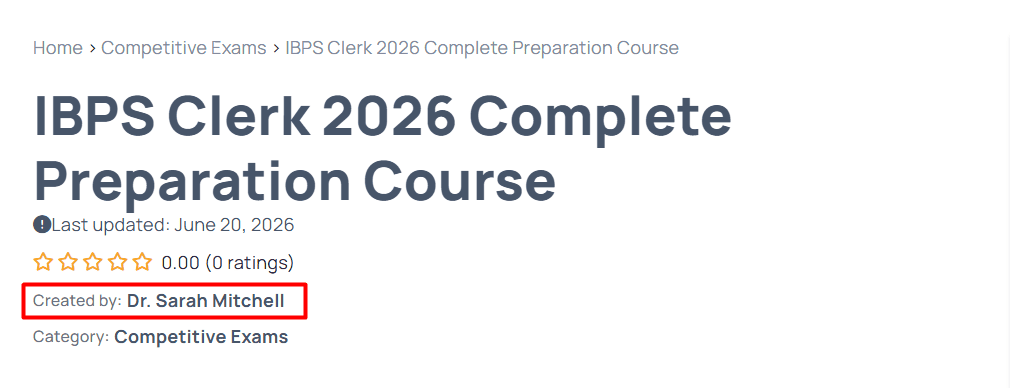
Enable Author
Enable this option to display the course author or instructor information on the course page.
This helps students identify who created or is responsible for the course.
Enable Category
Enable this option to display the course category on the course page.
Course categories help students understand the subject or area to which a course belongs.

Enable Social Share
Enable this option to display social sharing options on the course page.
Students and visitors can share course pages with others through the available social sharing options.
This can help increase course visibility and attract potential students.

Enable Wishlist
Enable this option to display the wishlist functionality on course pages.
Students can use the wishlist feature to save courses they are interested in and revisit them later.
This is useful for students who want to explore courses before making an enrollment decision.

Enable Duration
Enable this option to display the course duration on the course page.
This helps students understand the expected time commitment required to complete a course.

Enable Level
Enable this option to display the course difficulty level.
This helps students identify whether a course is suitable for beginners, intermediate learners, or advanced learners.

Enable Student Enrolled
Enable this option to display the number of students enrolled in the course.
Displaying enrollment information can help students understand the popularity and adoption of a course.

Enable Tax
Enable this option to display applicable tax information on the course page.
This can help students understand the tax-related information associated with a course purchase.

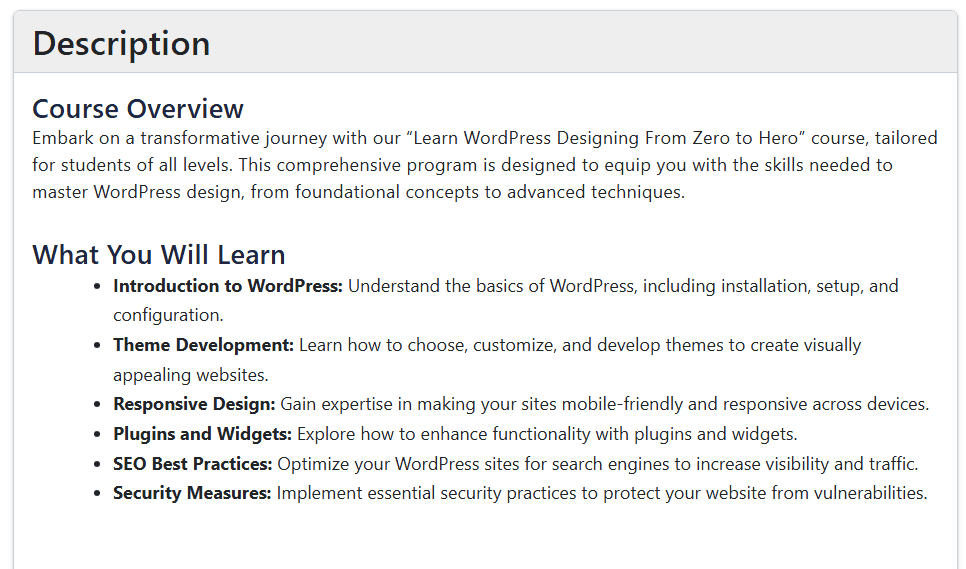
Enable Description
Enable this option to display the course description on the course page.
The description provides an overview of the course, its content, and what students can expect to learn.
Enable Outcomes
Enable this option to display the course learning outcomes.
Learning outcomes help students understand the knowledge, skills, and competencies they can expect to gain after completing the course.

Enable Target Audience
Enable this option to display the intended target audience for the course.
Use this section to explain who should enroll in the course, such as beginners, advanced learners, students, or working professionals.

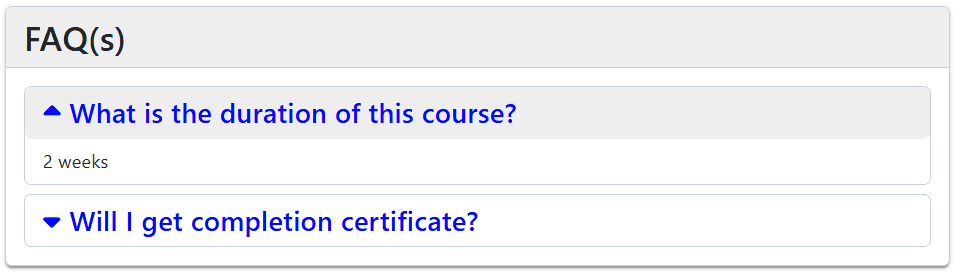
Enable FAQs
Enable this option to display frequently asked questions on the course page.
FAQs help answer common questions about the course and provide useful information before enrollment.
Enable Instructors Info
Enable this option to display instructor information on the course page.
This allows students to learn more about the instructors associated with the course, including their background and expertise.
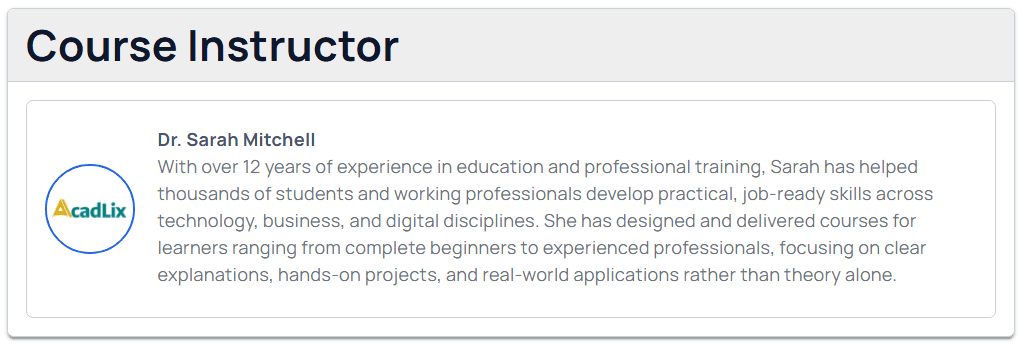
Enable course instructor in Acadlix single course page
Enable Curriculum
Enable this option to display the course curriculum on the course page.
The curriculum provides an overview of the course structure, including its lessons and learning content.
This helps students understand what is included in the course before enrolling.

Enable Requirements
Enable this option to display the course requirements.
Use this section to explain any prerequisites, prior knowledge, skills, or resources students should have before starting the course.

Enable Resources
Enable this option to display the course resources section.
This allows students to view the additional learning resources associated with the course.

Enable Reviews
Enable this option to display student reviews and ratings on the course page.
Reviews help prospective students understand other learners’ experiences and make more informed enrollment decisions.
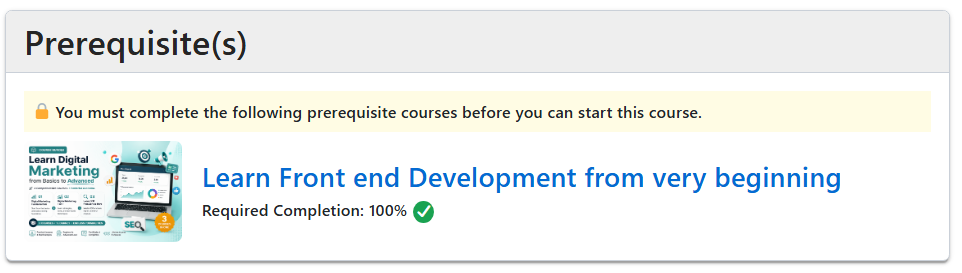
Enable Prerequisites
Enable this option to display course prerequisites on the course page.
Prerequisites inform students if they need to complete another course or meet specific learning requirements before enrolling.
Save Settings
After configuring Course Options and Course Page Options, click the Save button to apply your changes.
The selected settings will control how course listings and individual course pages are presented on your website.
Recommended Configuration
We recommend enabling most Course Page Options to provide students with complete course information before enrollment.
However, you can disable individual sections if they are not relevant to your courses or if you prefer a simpler course page layout.
For example:
- Enable Curriculum, Outcomes, and Requirements to provide detailed course information.
- Enable Reviews and Student Enrolled to build trust with prospective students.
- Enable FAQs to address common questions.
- Enable Social Share to encourage course promotion.
- Enable Breadcrumb to improve navigation.
Tip: Displaying relevant and useful course information helps students understand the value of your courses and make informed enrollment decisions.
Note: Most of the settings are the same for the course bundles, so you can enable or disable them from Acadlix -> Settings -> Course Bundle.