
The Student Dashboard Options allow you to customize the appearance, layout, and functionality of the student dashboard. You can control which sections are displayed, configure dashboard preferences, and choose how students access course pages on desktop and mobile devices.
Student Dashboard Options
These settings allow you to customize the general appearance and behavior of the student dashboard.
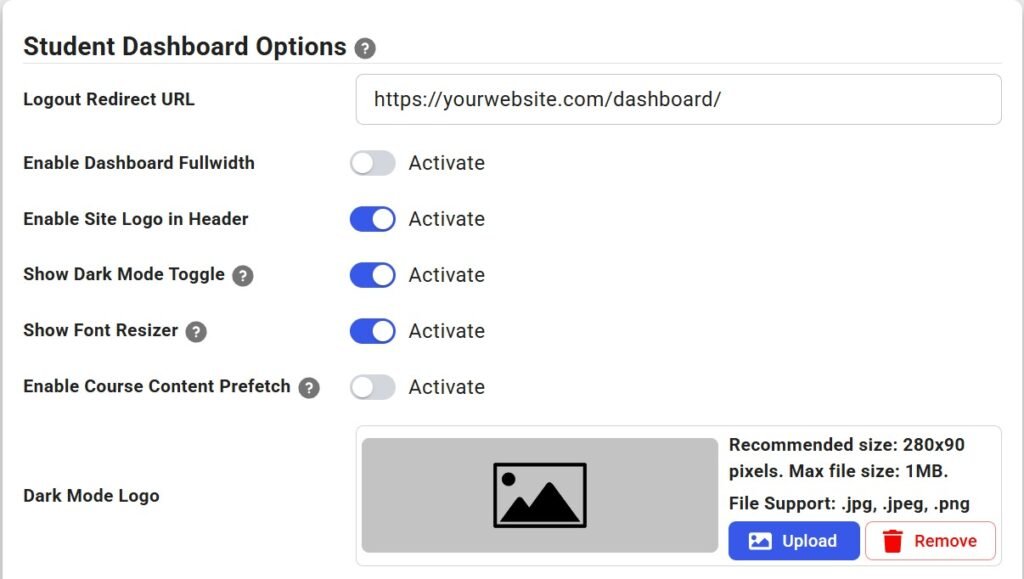
Logout Redirect URL
Specify the URL where students should be redirected after logging out of their accounts.
For example, you can redirect students to your website homepage, login page, or another custom page.
Enable Dashboard Fullwidth
Enable this option to display the student dashboard using the full available width of the screen.
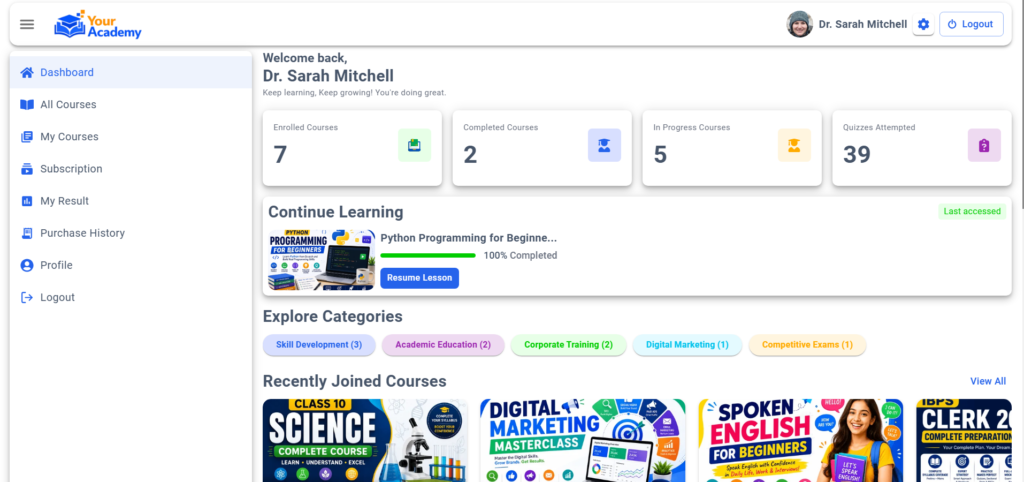
Disable it if you prefer to display the dashboard within the theme’s standard content width.

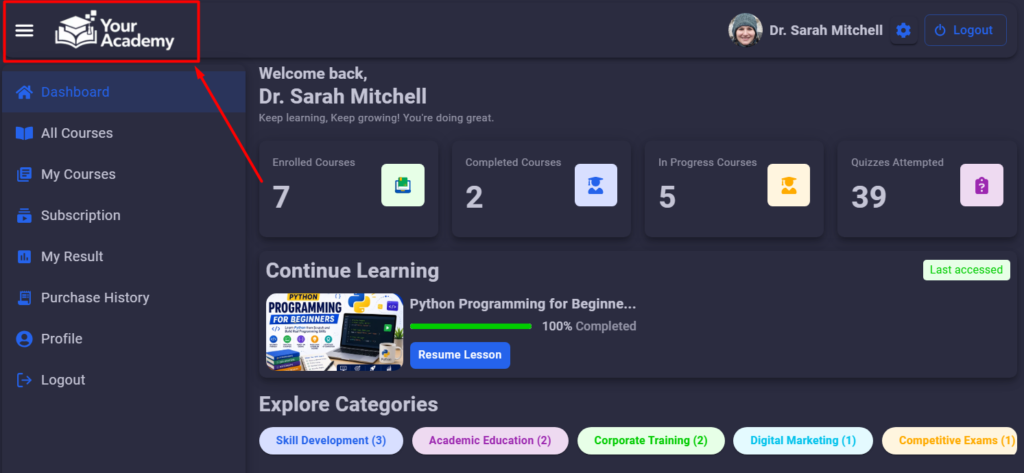
Enable Site Logo in Header
Enable this option to display your website logo in the student dashboard header.

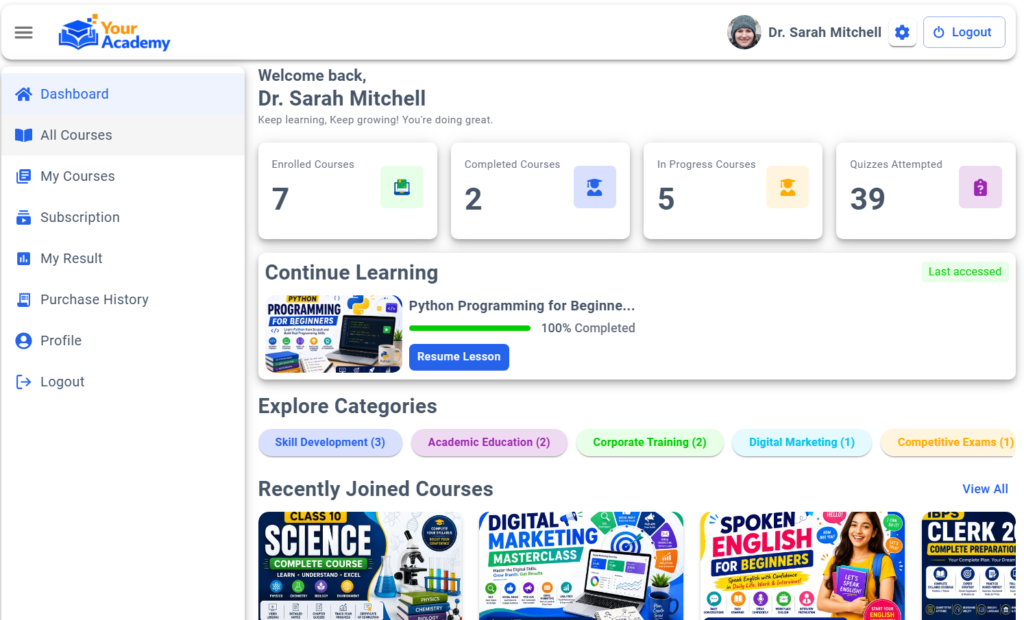
Site Logo Enabled in Student Dashboard Header
This helps maintain consistent website branding throughout the student experience.
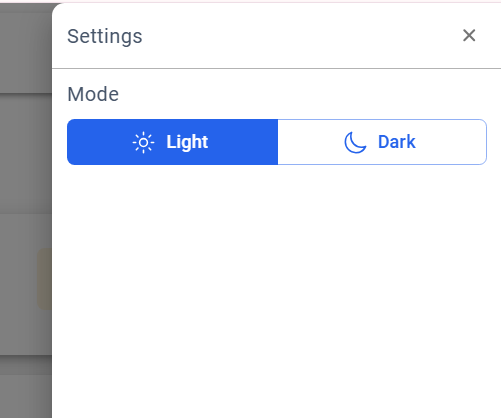
Show Dark Mode Toggle
Enable this option to display a Dark Mode toggle in the student dashboard.
Students can use this option to switch between light and dark themes according to their preferences.
Show Font Resizer
Enable this option to display font resizing controls in the student dashboard.
Students can increase or decrease the text size to improve readability and accessibility in the student dashboard.
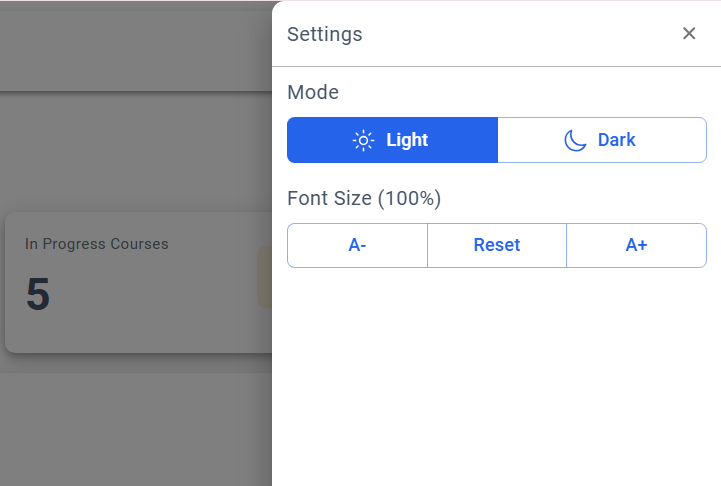
WordPress LMS font resizer
Enable Course Content Prefetch
Enable this option to preload course content in advance, helping improve navigation and provide a smoother learning experience. When you enable this option, the system will start preloading the next and previous lessons inside the course player.
Dark Mode Logo
If you use your regular multi-color logo in dark mode, it may not look good. So we recommend you upload a custom dark logo to display in the student dashboard during dark mode.
- Recommended Size: 280 × 90 pixels
- Maximum File Size: 1 MB
- Supported Formats: JPG, JPEG, PNG
Use this option if you want to display a different logo in the student dashboard instead of your default website branding.
Dashboard Page Options
Dashboard Page Options allow you to control which sections are displayed on the student dashboard.
You can enable or disable individual sections depending on your requirements and the type of learning experience you want to provide.
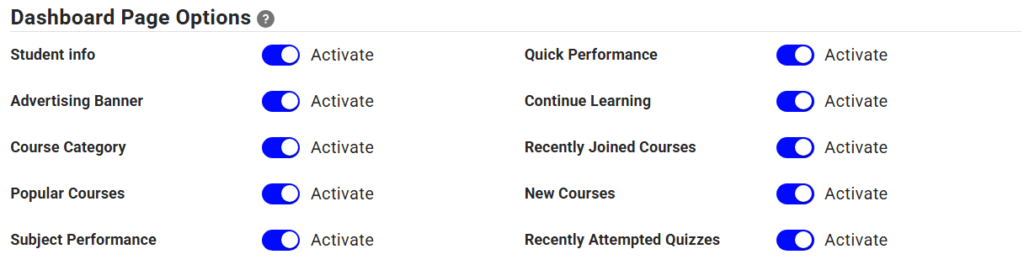
The available sections include:
Student Info
Displays student-related information on the dashboard.

Quick Performance
Displays a quick overview of the student’s performance and learning statistics that includes enrolled courses, completed courses, in-progress courses, and total attempted quizzes.

Advertising Banner
Displays the advertising banner configured under the Student Dashboard → Advertising Banner settings.

Continue Learning
Displays the last accessed course by the student, so the student can continue learning from where they previously left off.

Course Category
Displays all course categories to help students discover and browse available courses.

Recently Joined Courses
Displays the courses that students have recently enrolled in.

Popular Courses
Displays the top 5 popular courses on the student dashboard. Currently, Acadlix shows the popular courses based on the total enrollment and displays the top 5 enrolled courses.

New Courses
Displays newly added courses to the website to help students discover the latest learning content.

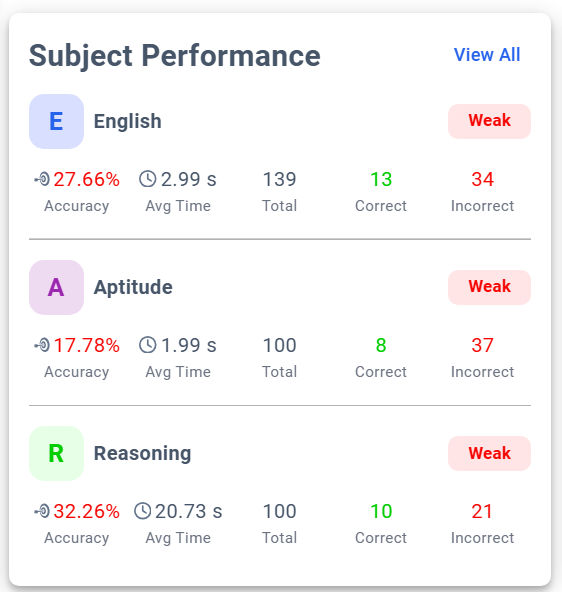
Subject Performance
Displays students’ performance across different subjects based on their attempted quizzes, helping them understand their learning progress.
Recently Attempted Quizzes
Displays an overview of quizzes that students have recently attempted.

Note: Disable any section that you do not want to display on the student dashboard.
Student Experience
Student Experience settings allow you to choose how students access course-related pages on desktop and mobile devices.
Acadlix provides two options:

Use Public Course Pages
When this option is selected, students will be redirected to the regular front-end pages of your website for:
- All Courses
- Single Course
- Course Bundle
These pages use your website’s regular front-end design and layout.

Choose this option if you want students to experience course pages using your existing website theme and front-end layouts.
Use Student Dashboard Course Pages
When this option is selected, students will access internal course pages developed using React.js within the Acadlix Student Dashboard.
These internal pages provide a more integrated experience without relying on your website’s regular front-end course page layouts.
Available pages include:
- All Courses
- Single Course
- Course Bundle

This option provides a smoother, more seamless navigation experience and is particularly useful for websites using the Acadlix PWA Mobile App.
Desktop
Choose which course page experience students will see when accessing your website from desktop devices.
- Use Public Course Pages: Opens the regular front-end course pages.
- Use Student Dashboard Course Pages: Opens the internal React.js based course pages within the student dashboard.
Mobile
Choose which course page experience students will see when accessing your website from mobile devices.
- Use Public Course Pages: Opens the regular mobile-responsive front-end course pages.
- Use Student Dashboard Course Pages: Opens the internal React.js based course pages within the student dashboard.
Recommendation: We recommend selecting Use Student Dashboard Course Pages for mobile devices, especially if you are using the Acadlix PWA Mobile App. Internal pages provide a more app-like experience with smoother navigation and a consistent interface.
You can configure Desktop and Mobile independently based on your requirements.
After configuring the options, click the Save button to apply your changes to the student dashboard.